01 / PERSONAL INSTALLATION
The home, room by room
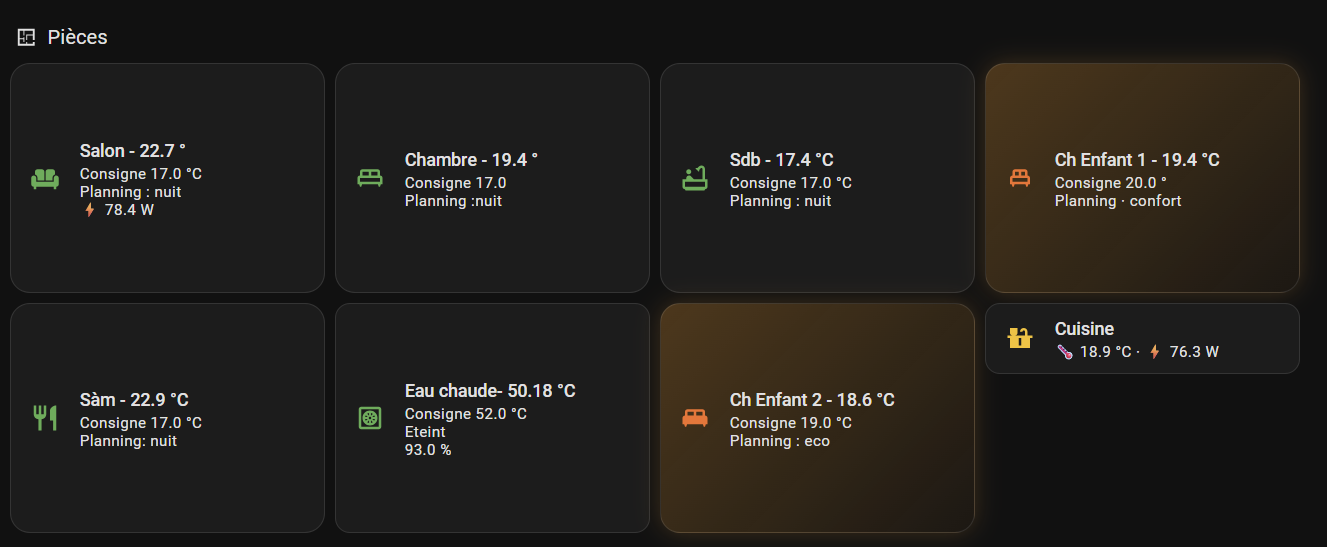
Temperatures, setpoints and heating modes come together in one overview. Some cards also show electrical power or hot-water status. Bedroom labels have been anonymised.
PERSONAL INSTALLATION
These examples come from my personal Home Assistant installation: a room overview, adjustable heating, a connected living room and energy monitoring. Each screenshot sits alongside the functions it illustrates.
01 / PERSONAL INSTALLATION
Temperatures, setpoints and heating modes come together in one overview. Some cards also show electrical power or hot-water status. Bedroom labels have been anonymised.
02 / PERSONAL INSTALLATION
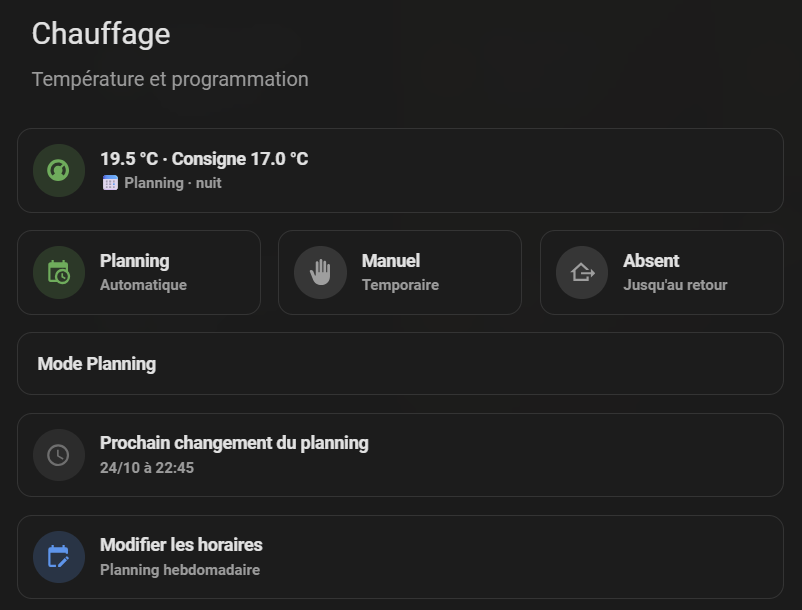
This view shows measured temperature and setpoint. Three controls offer automatic scheduling, a temporary manual setting or an away mode until return. The next scheduled change is visible and the weekly schedule is accessible from the same view.
03 / PERSONAL INSTALLATION
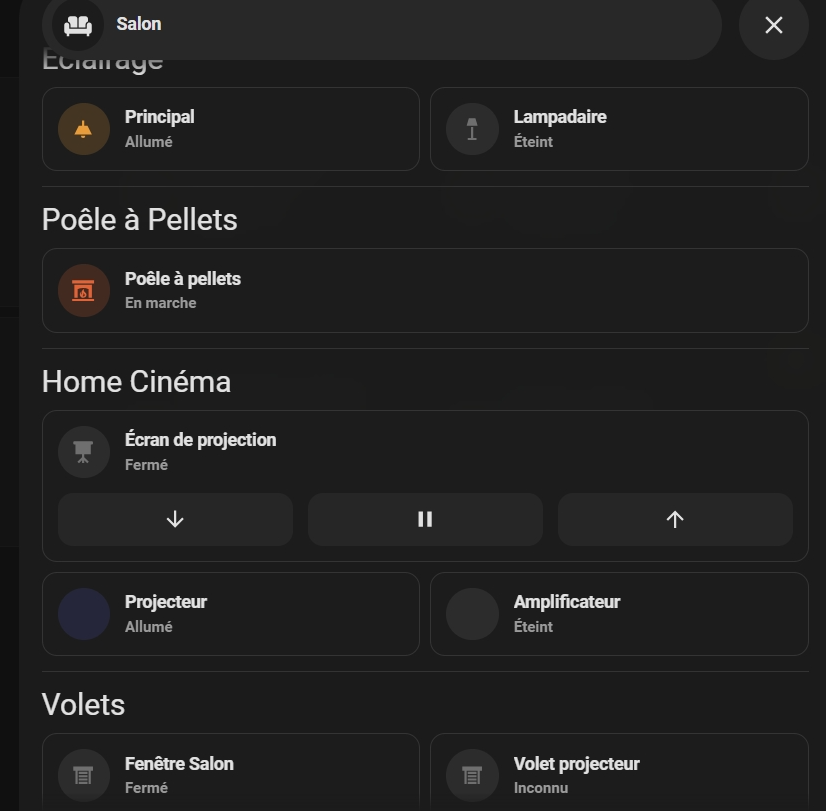
Lighting, pellet stove, home cinema and shutters share a single view. The projection screen has down, stop and up controls. Indicators show each device’s known status, including unknown states.
PERSONAL AUTOMATION · HOME CINEMA
In this personal installation, switching on the projector triggers several coordinated actions. A separate choice then switches the sound to the amplifier.
An explanatory diagram of this personal installation. Actions are grouped for readability; the diagram does not show their exact timing or execution order.
PERSONAL PROJECT · ENERGY MONITORING
An energy dashboard complements this personal installation. It brings together solar generation, electricity drawn from the grid and household consumption. The distribution diagram shows flows between these sources, while charts track power and the distribution of consumption throughout the day.
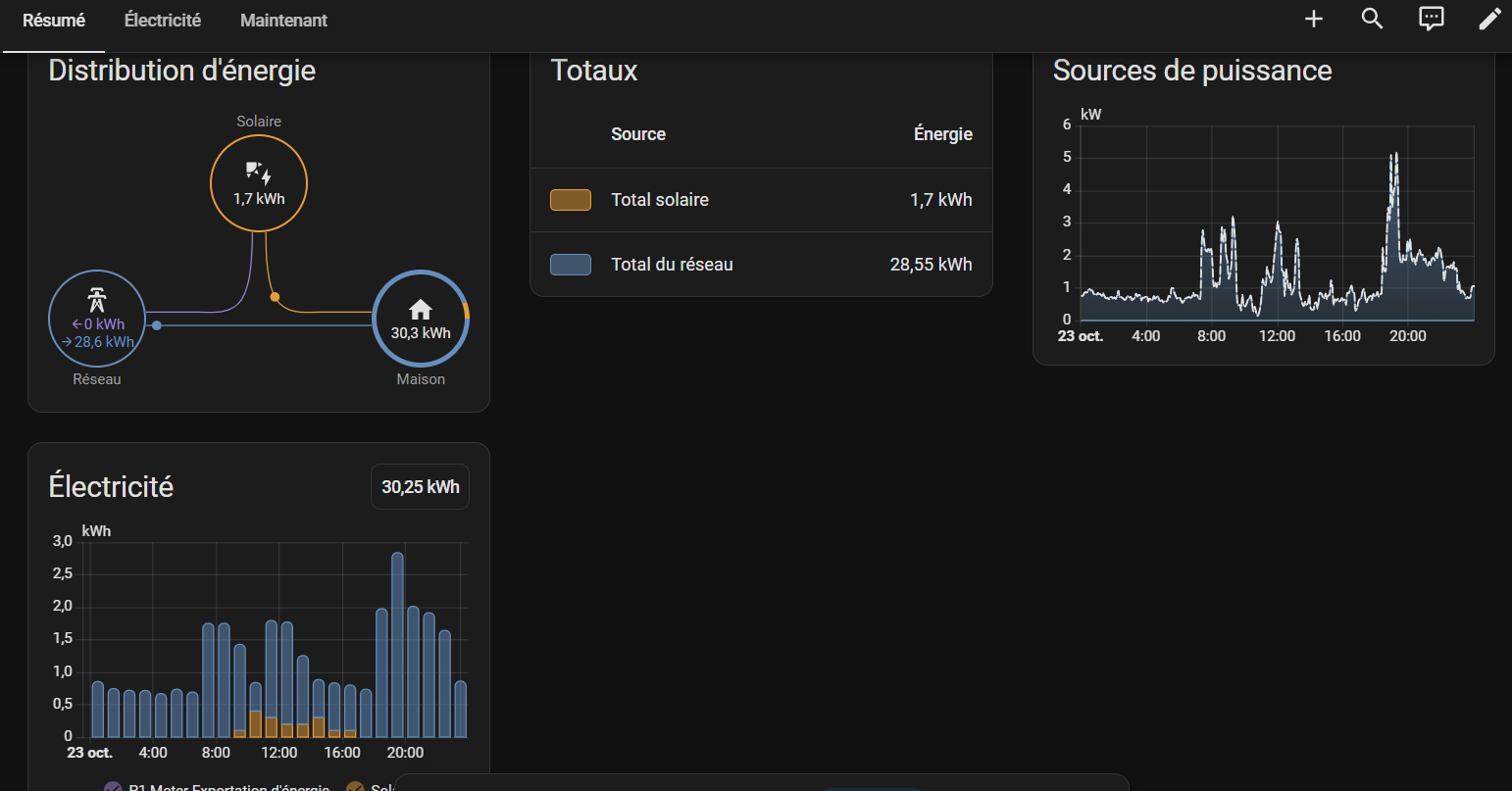
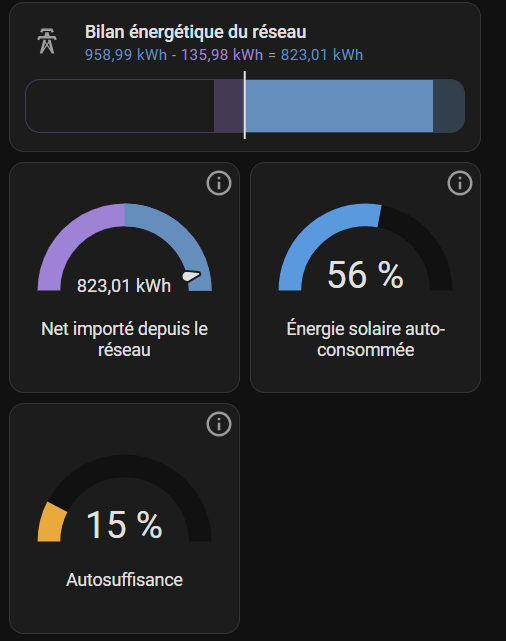
This additional view shows the grid balance, net imported energy, the share of solar generation used on site and self-sufficiency. Values relate to the period selected in Home Assistant. They describe this installation; they are neither a promised result nor a measurement of savings achieved.
POSSIBLE SCENARIO · TO BE DESIGNED
A button by the exit could trigger a leaving-home scene when the last person leaves. This is a possible scenario to define around occupants, equipment and agreed rules.
Illustrative scenario, not presented as already implemented. Compatibility and operating conditions must be checked before installation.